Orders and service
Choose who can ring up items, open orders, use the floor plan or merge bills.
Choose what each staff role can do at the till, from taking orders to issuing refunds. Set where they work and when a manager needs to step in.
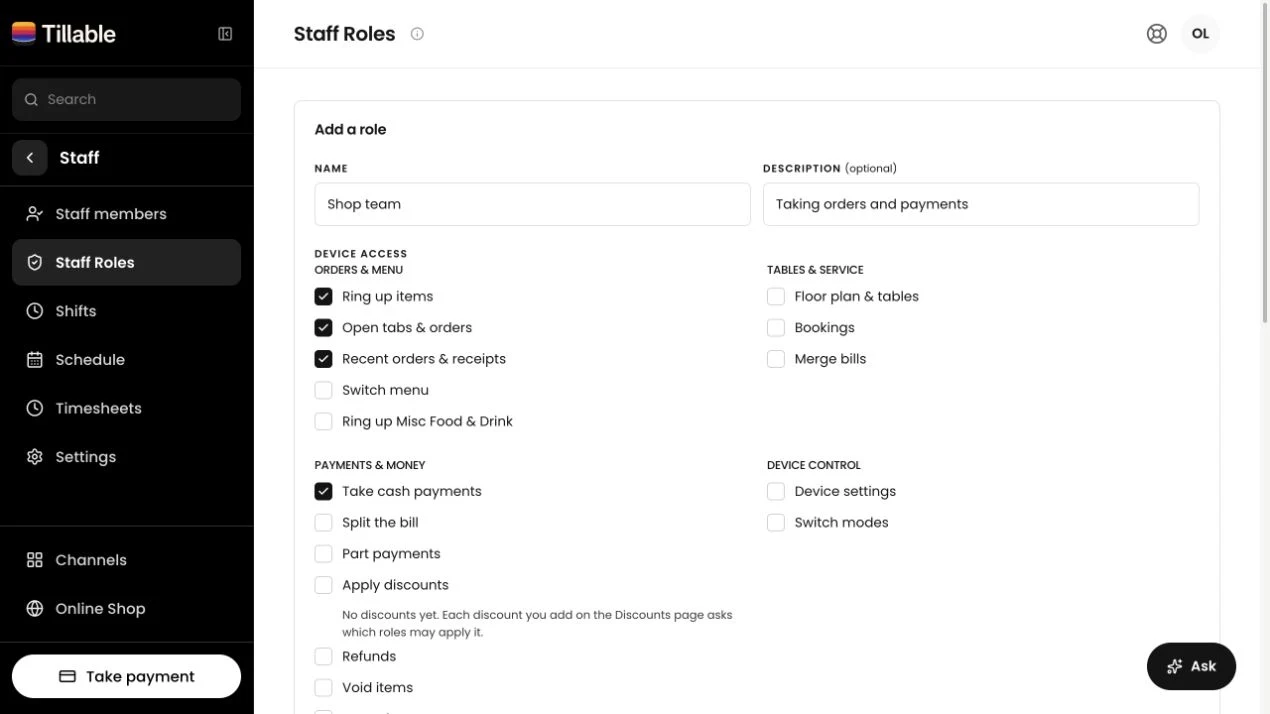
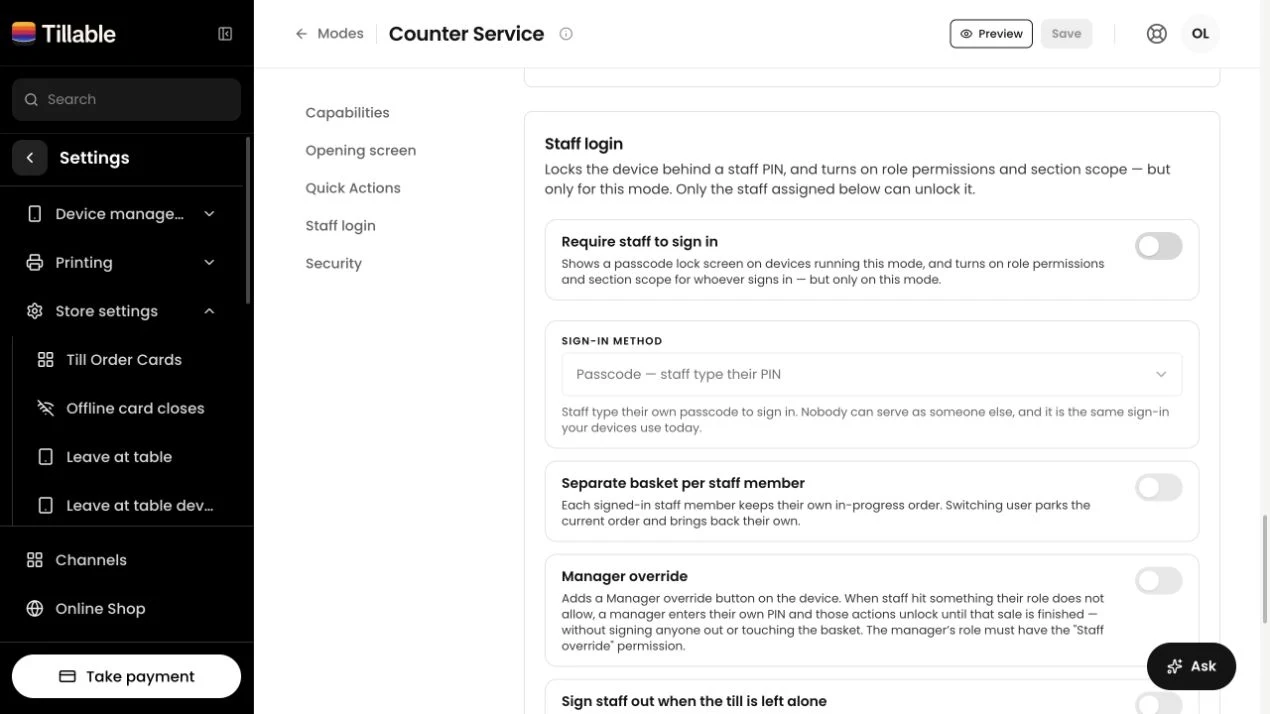
Set permissions for each role. To apply those restrictions, switch on Require staff to sign in for the device’s mode. A role can use only the features that mode already allows.
Choose who can ring up items, open orders, use the floor plan or merge bills.
Choose which discounts a role can apply. A member of staff sees the discounts you have allowed for their role when they open the picker.
Decide separately who can return money already paid and who can remove an unpaid item from a bill.
Choose who can change the device’s settings or switch modes. Till admin also has separate controls for reports, the cash drawer and kitchen actions.
A customer needs a discount the staff member cannot give. With Manager override enabled, an authorised manager can lend their permissions for the rest of that sale. The staff member stays signed in and keeps the basket.
They need the Staff override permission on their role. The device must be online to check their PIN.
The manager authorises the override on the till. Their permissions are added while the staff member continues the sale.
The override ends when the sale is paid, closed or cleared. The sale stays recorded against the staff member who was serving.
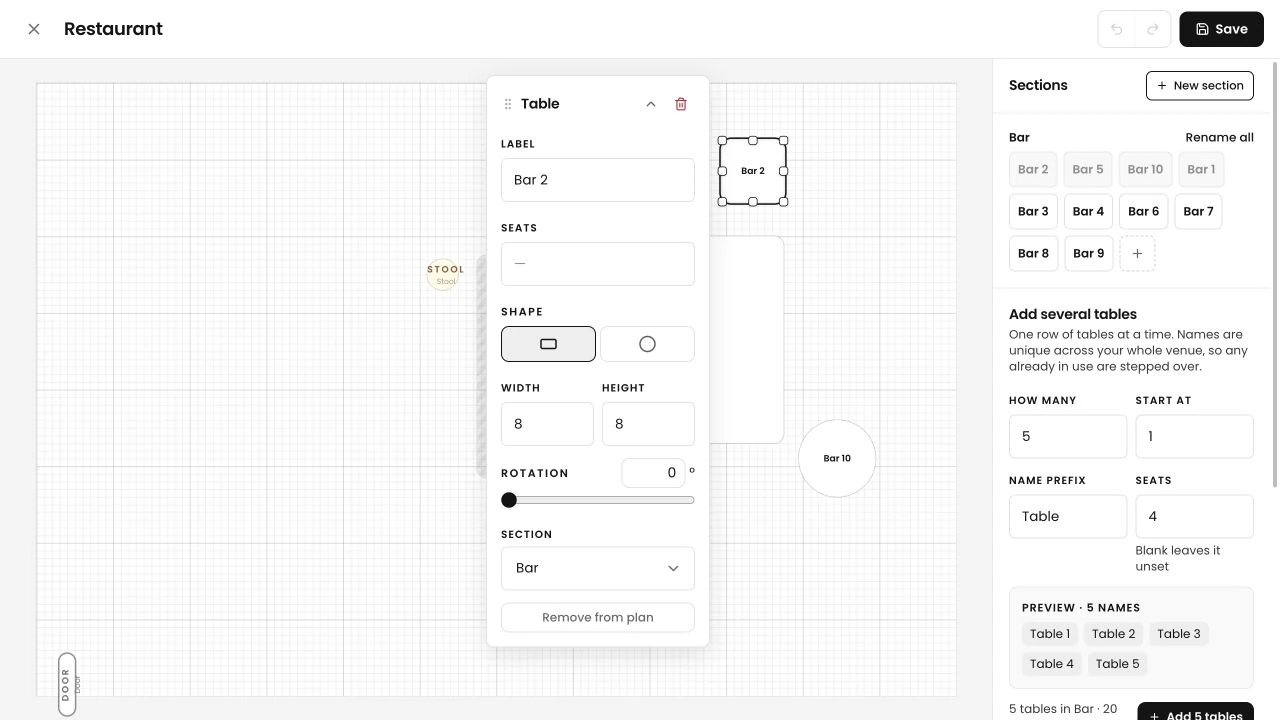
Assign till staff to one site or all your sites. Within a floor plan, choose their sections. When the mode requires staff sign-in, those assignments determine which tables they can see.
The device checks the staff member’s site when they sign in. Give people who work across the business access to all sites, and keep a single-site team assigned to its own.
Assign the dining room, terrace or other sections they serve. Their floor plan shows the tables in those areas, so the view matches where they are working.
A role, a staff record and a device mode each have a job in the setup. Work through them in that order before your team starts using the till.
Use names your team recognises. Choose the actions each role can take, including the individual discounts it can apply.
Give each person a role and set their site and sections. Set up their staff passcode for signing in on the till.
Choose the modes where restrictions should apply. Add Manager override where your team needs it, and give the relevant roles permission to authorise one.
Use staff roles at the till, sections on the floor plan and a rota for the working week.
No. The device’s mode must require staff sign-in. Optional sign-in on an open mode records who served, but staff can still use everything that mode allows.
No. A staff role and PIN are for the till; they do not create a portal login. Talk to us about the portal access available for your account.
For the rest of the sale, until it is paid, closed or cleared. It also ends on staff sign-out or device restart. This lends the manager’s permissions; it is not a separate approval for every action. Starting an override requires an internet connection.
Yes. Assign staff to one site or all sites, and select their floor-plan sections. Table visibility follows those sections when the device’s mode requires staff sign-in.
Yes. Set an inactivity timer for the till. It does not interrupt an open bill, payment or pop-up. This setting applies to the till, not handhelds or portal users.
No. Staff roles control work on the till. Tell us what your agent needs to read or change so we can go through access for that connection.

Bring us the jobs your team does. We’ll walk through the roles, site assignments and settings for your tills.