Your name on the page
Use your logo and colours, with your opening hours and contact details. Guests book directly with you without creating an account.
Take table bookings on your website and manage the day’s arrivals in Tillable. Set the times you offer and the tables you keep back. Live with selected venues.

Check the evening’s bookings before service. See party sizes, arrival times and guest notes, then decide how to use the room.
Share your booking link or add the form to your site. Guests choose a date, party size and available time.
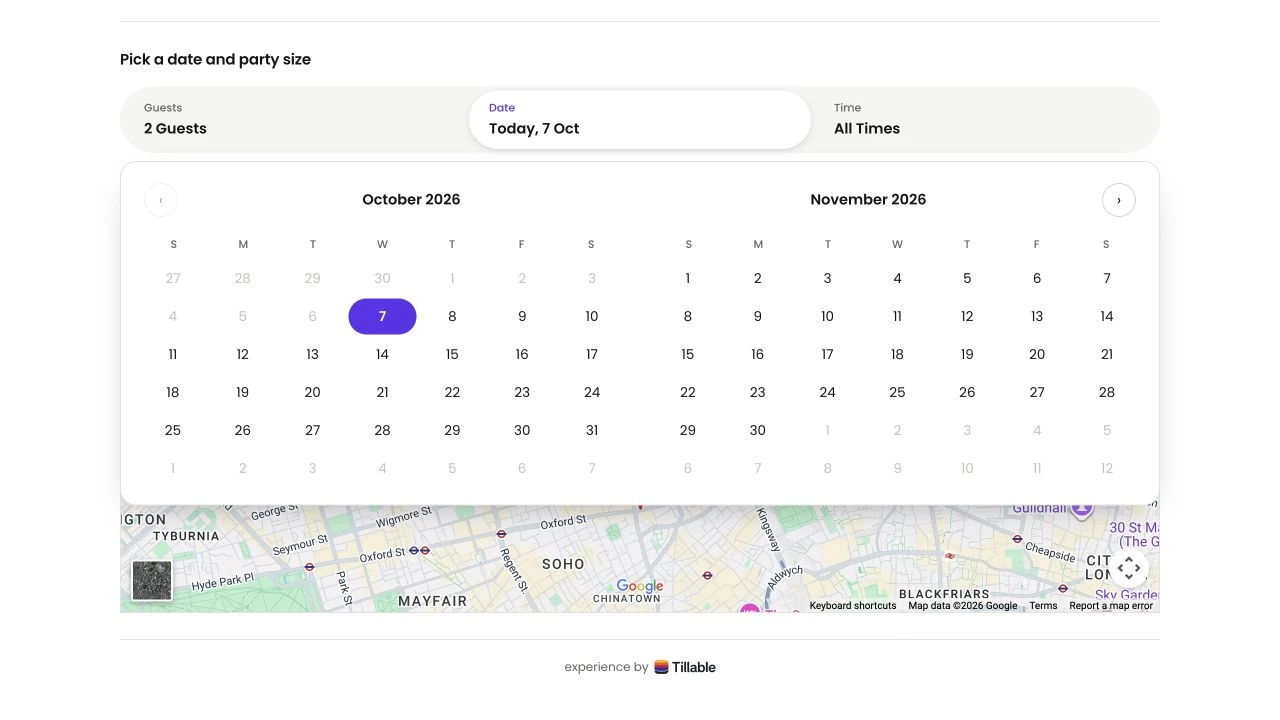
Use your logo and colours, with your opening hours and contact details. Guests book directly with you without creating an account.
Guests see their date, time and party size on confirmation, with a cancellation code to keep.
The diary lists your bookings for the day. Open one to check the guest’s details, read their notes or make a change.
See upcoming, seated and finished bookings separately. Cancelled bookings and no-shows have their own place in the diary.
Switch to the Planner for a timeline of the day. Each table has a row, so you can see bookings and gaps together.
Decide which tables go online and how much space to keep for your team. Tillable checks availability when a guest confirms.
Set the hours you take bookings, the notice you need and how far ahead guests can choose a date.
Choose the gap between booking times and the length of each sitting. Larger parties can have a different sitting length.
Rank suitable tables by party size. Keep a larger table out of the choices for smaller groups when you need to.
Use the floor map to see the room during service. Check table status before seating the next party.
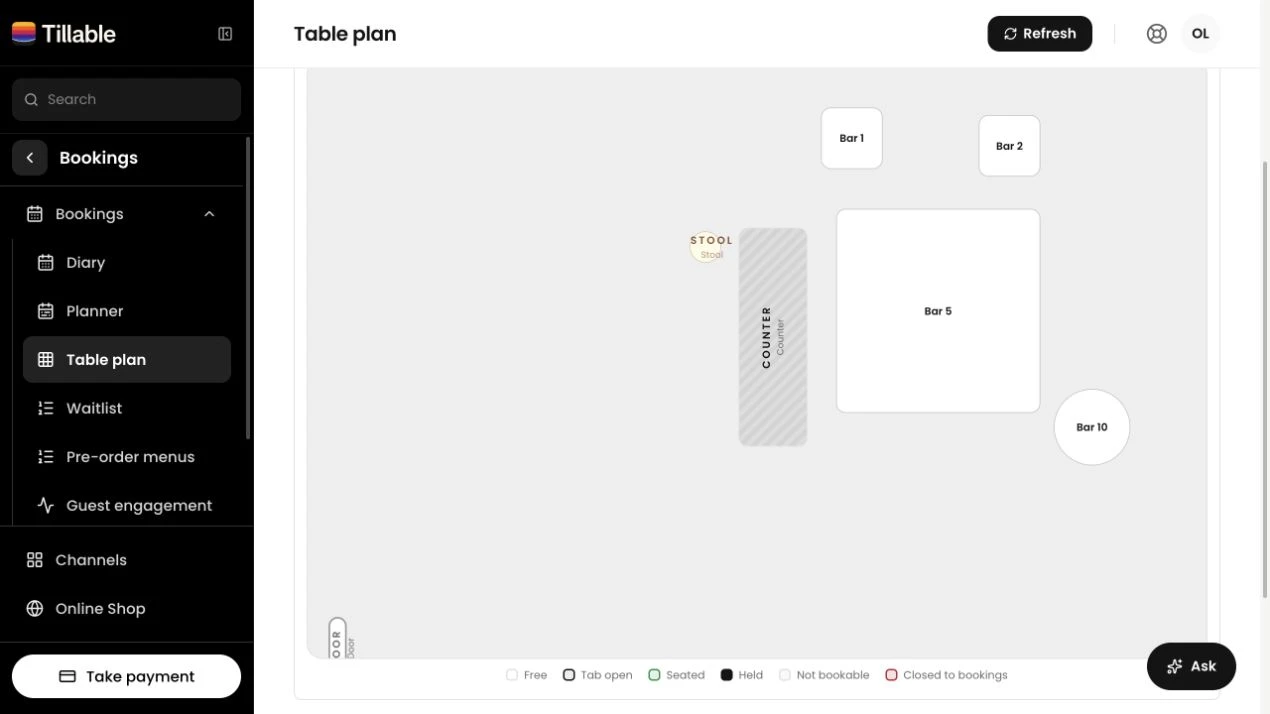
Enter the guest’s details in Tillable. Your team works from the same diary for bookings taken online and by phone.
Bookings and open tabs use the same table availability. Your floor map shows which tables are occupied as service moves on.
With Bookings Pro, choose the questions guests answer when they book. Build a booking flow and use it across your booking setups.
Add your own questions and choose which answers are required. Ask about an occasion or anything you need to prepare for the visit.
Preview the guest’s flow on a phone or computer. Save changes as a draft, then publish when you’re ready for guests to see them.
Open the table in Point of Sale when guests are seated. Follow their orders on the Kitchen Display System.
Yes. Add the booking form to a page or use a floating button that opens it. You also get a booking link to share.
No. They choose an available time and leave the details your booking form asks for. The confirmation page gives them a cancellation code.
Yes. Add them yourself in Tillable. They appear in the same diary as online bookings, so your team can find both in one place.
Yes. Choose which tables are offered online and the share of your room available to book. Keep the rest for your team to allocate.
Yes, if you enable that question for the booking setup. It is off by default. Guests choose from available floor plans when there is a choice.
Bookings Pro includes location links for individual sites. Talk to us about the sites you run so we can confirm the setup and pricing.

Tell us about your rooms, your opening hours and the service you run. We’ll help you work out the setup you need.