An itemised order
Browse the menu and add items as your customer orders.
Build the order beside your customer, then take their payment on the built-in card reader. The same Tillable software runs on your counter.
Choose the products your customer wants, check the basket and move to payment. The handheld keeps each part of the sale within reach.
The order and the payment happen on the device you’re holding. Customers can tap a card or phone, or use chip and PIN.
Start the payment on the counter till and send the total to a handheld at your site. Nobody needs to type the amount again.
The payment request carries the order’s total.
If several terminals are available, choose which one receives the bill.
The customer pays on the handheld’s built-in reader.
A handheld lets you take the sale where you’re already helping the customer.
Add the drinks and dishes while you’re with your guests. When they’re ready to pay, bring the card reader to them.
Choose the items, check the total and take payment beside your customer.
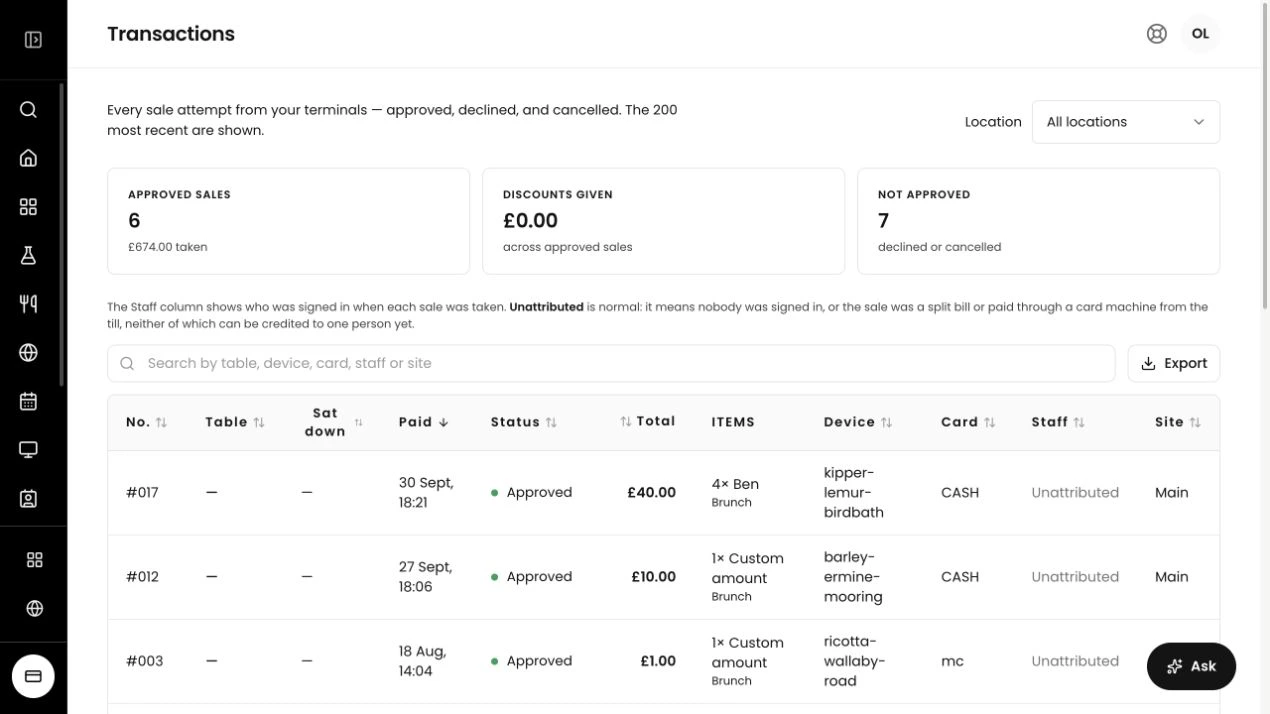
Review your terminal transactions in the back office. See the amount, date and payment status together, with search to help you find a particular sale.
Charge by USB-C or use a Tillable charging dock. Mobile data gives the handheld another way to take card payments when Wi-Fi is unavailable.
If an approved payment’s sales record cannot upload, Tillable keeps it on the device for another attempt.
If a card payment’s result is unclear, Tillable flags it for review. That is different from a sale waiting to upload.
Explore full point-of-sale features and connected payment terminals.
Both run Tillable Point of Sale. On the handheld, you move between the menu, basket and payment.
Yes. Enter the amount on the keypad and tap Charge to go straight to the card reader.
Yes. The till sends the payment request to a terminal at the same site, with the amount already filled in.
Card payments need a working connection. The handheld can use mobile data when Wi-Fi is unavailable.
Use USB-C or a compatible Tillable charging dock.

See how the handheld handles your menu, a customer’s order and the payment. We’ll help you work out the setup for your team.