Stock in the preview
Counts, minimum levels and the changes between deliveries.
- Ingredient stock list
- Counts by location and area
- Bottle, keg and case counts
- Count sheets and wastage records
- Low-stock views and dishes at risk
- Stock transfers
See stock counts, the ingredients behind each dish and the orders you are waiting for. Follow the whole routine in our development preview.
3 feature groups
Counts, minimum levels and the changes between deliveries.
Connect the products you sell to the stock they use.
Keep supplier orders and deliveries with your stock records.
Set a container for each ingredient so the count matches what is on the shelf. The preview’s stock list keeps counts and minimums together.
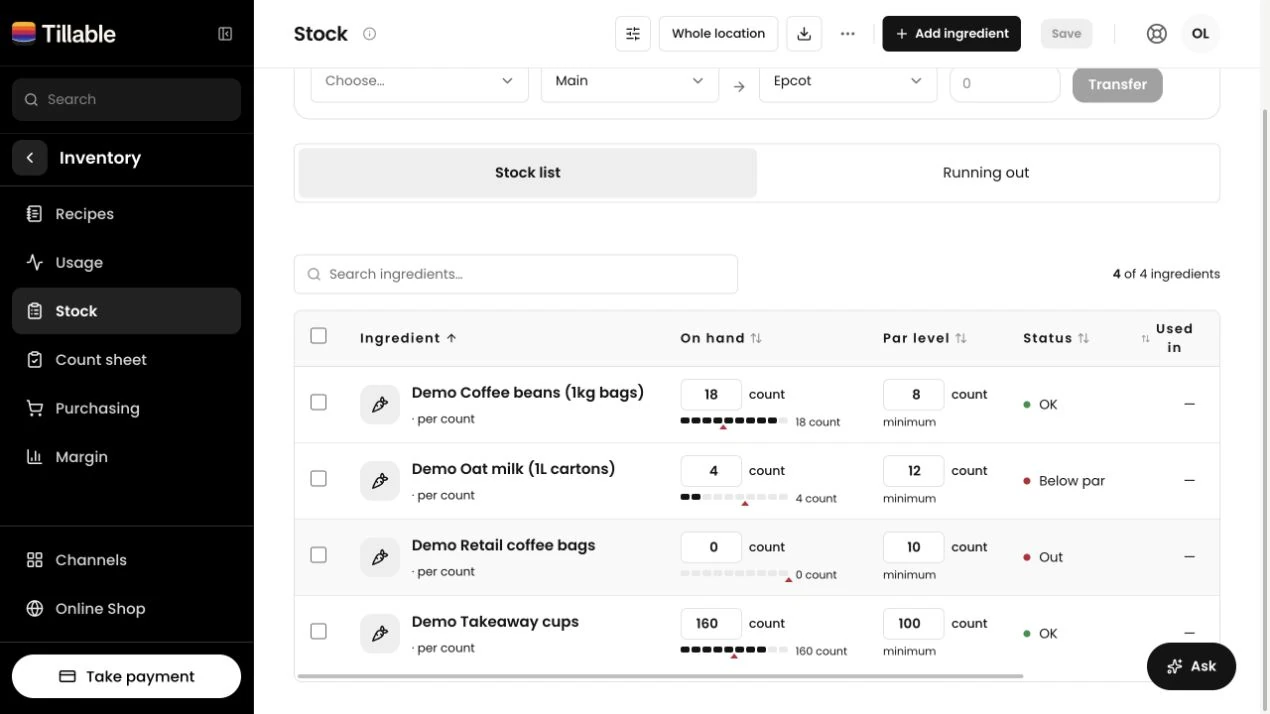
See the count for each ingredient. Filter by location or area when you keep stock in several places.
Set the minimum you want to hold. The stock list flags ingredients at or below that level.
Open Running out to see low ingredients and the dishes that use them. These are views you check, with no automatic notifications.
The preview’s count sheet groups ingredients by area. Count a whole site or select the ingredients you want to check.
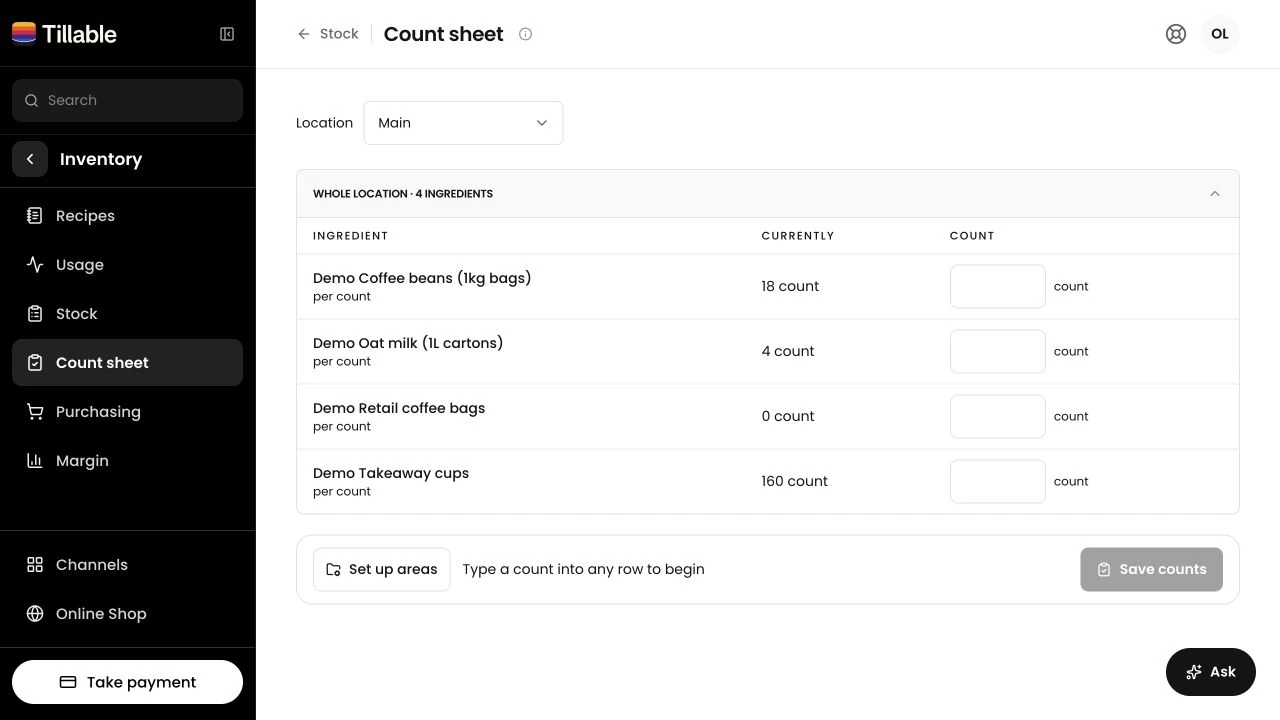
Keep the cellar, bar and kitchen on the same sheet, with each count against its own area.
Write off a spillage, breakage or spoiled ingredient with a reason. Keep that change in the stock history.
Send stock between areas or transfer it between sites. Record where it went without treating the move as a sale.
The preview supports simple product tracking and recipes. A sale reduces the linked stock by the quantity the product uses.
Use simple tracking for a finished product, such as a bottled drink. Each sale reduces its linked stock count.
Give each dish a recipe with ingredient quantities. Selling the dish draws down the ingredients in that recipe.
Record a batch of something you make in-house. The prepped ingredient goes up and the ingredients used to make it come down.
The preview’s purchasing page brings the To buy list, supplier records and purchase orders together. Receiving a delivery adds what arrived to stock.
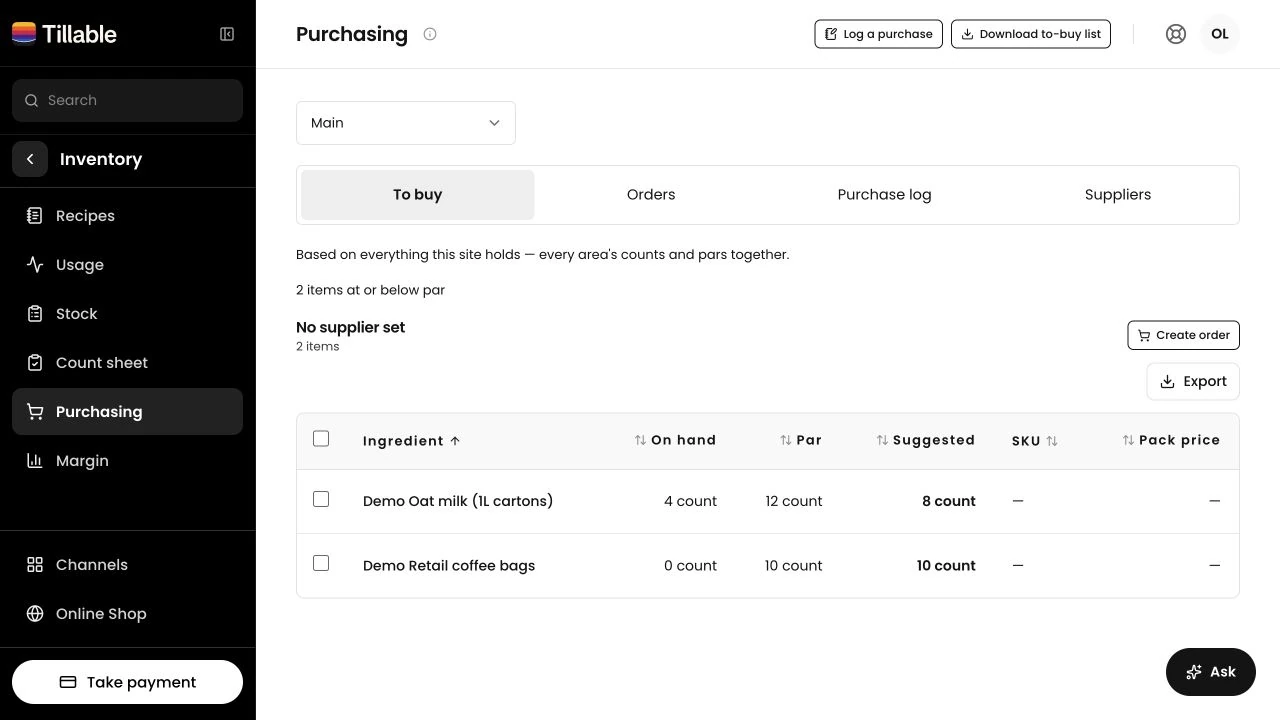
Review ingredients below their minimum and create a purchase order. Keep supplier details and purchase records alongside it.
Enter the quantity that arrived on each line. Leave the rest outstanding for the next delivery.
Place the order with your supplier, then mark it sent in Tillable. This records its status; Tillable does not email the supplier.
Manage the products on your menu, take sales at the till and see what sells in Reporting.
Yes, both are in the development preview. Use simple tracking for a bought-in product, or give a dish a recipe with ingredient quantities. Sales draw down the linked stock.
The preview holds counts by location and area. Use the count sheet for one site, grouped into the areas your team walks. Set containers to count in bottles, kegs or cases.
Enter what you counted on the stock list or count sheet. Use the wastage action to write off an amount with a reason, such as breakage or spoilage. The stock history records the change.
There are no automatic low-stock notifications. Set a minimum, then check the stock list or Running out view for low ingredients. The To buy list brings those ingredients into purchasing.
Yes. In the preview, enter what actually arrived on each purchase-order line. Receiving adds those quantities to stock. The order keeps the rest outstanding, ready to receive when it arrives.
No. Place the order by phone, email or your supplier’s own portal. Mark it sent in Tillable to record its status and date. Receiving the delivery is the step that changes your stock.

Tell us what you buy, where you keep it and how you order more. Ask about the Inventory preview for your team.