In your tablet’s browser
Open each kitchen screen from its secure link in a tablet browser. There is no separate app to install or update.
Keep orders visible and send each item to the section preparing it.
For selected businesses, orders reach the kitchen screen seconds after staff send them.
Open each kitchen screen from its secure link in a tablet browser. There is no separate app to install or update.
Orders reach the kitchen screen seconds after your staff send them, with the details ready for the team preparing them.
Cancelled items are crossed out, so the team can see what was removed.
Tickets appear as white cards with coloured headers, so your team can pick out each order.
Tap a ticket to mark it complete. The screen clears it immediately, without waiting for the network.
Send each item to the section that cooks it.
If you run a single kitchen screen, every order routes to it automatically. There is nothing to configure.
Send each item to the section that makes it: grill, fryer, pastry or bar. Every station sees only its own work.
Choose on each device whether counter sales send tickets to the kitchen as well as table orders.
Bring back a completed ticket within the station’s recall window. The default is 30 minutes, and you can set a different window for each station.
A café with one preparation area and a restaurant with a separate bar need different ticket arrangements.
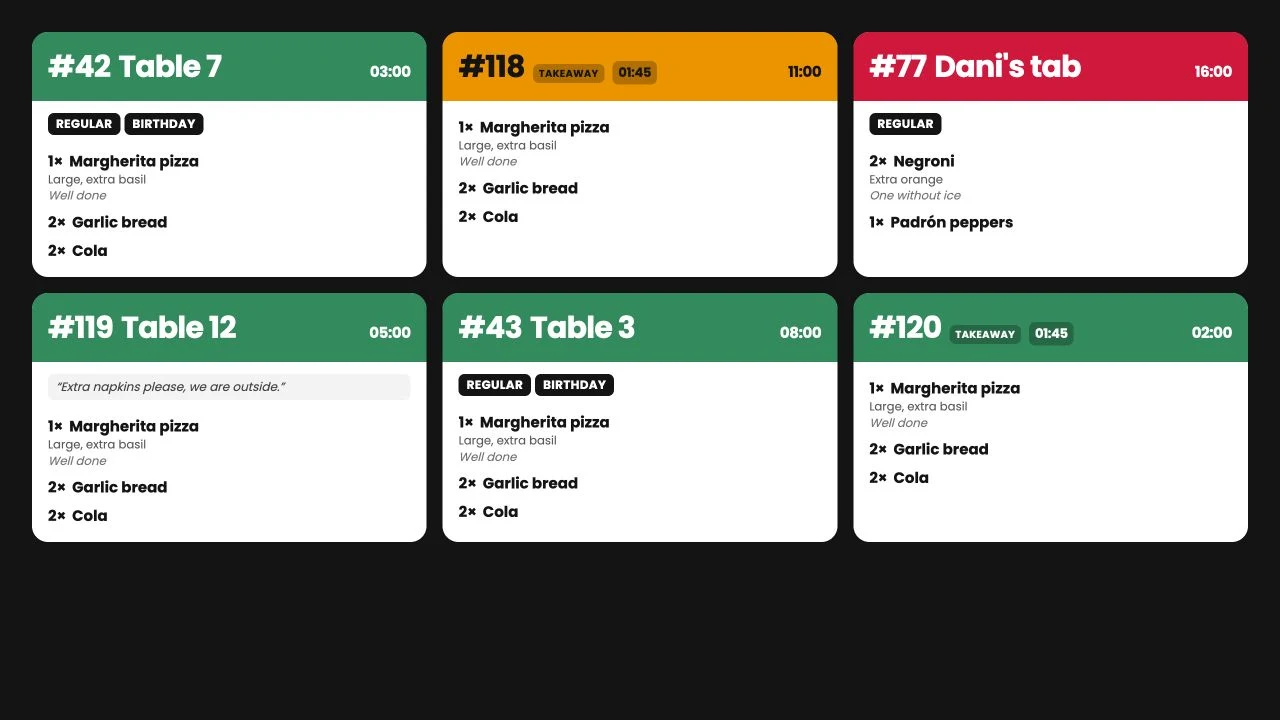
With one preparation station, all items route there automatically. The team has one place to read the work coming in.
Assign items to stations so each team receives what it prepares.
Use stations for work such as grill, fryer or pastry. The menu’s item routing determines where each item appears.
Use an order your team recognises to check the route from till to preparation.
Add an item with a selected option and confirm that detail appears beneath it on the ticket.
Check the counter-order setting on the device you are using. Each till has its own setting.
Complete the ticket, then use the station’s recall window to bring it back. Confirm the setting suits that team’s work.
Set up your products and options, take orders at the till and organise table service.
The kitchen display opens in a web browser using a secure link for that screen. Check your tablet and browser with us before buying equipment or fitting mounts.
Yes. Assign each item to its preparation station. An item can appear at several stations. With one preparation station, all items route there automatically.
Yes. A pass screen shows the complete order. Preparation screens show the items assigned to their station, so each team has its own view.
Yes. Recall it from the station’s history. Each station has its own recall window, set to 30 minutes by default. You can change that setting.
The browser screen keeps its last received tickets while it retries the connection. It needs a connection to receive new orders.
Course controls need to be enabled separately for your setup. Tell us how you call starters, mains and desserts when discussing your setup.

Tell us where food and drinks are prepared. We’ll talk through the screens and stations you need.