A price per menu
For example, charge £5 for a pint normally and £3 on the happy hour menu. Menu edits preserve that price without changing the base price.
How to build a catalogue, turn it into menus and keep every device up to date.
Build a product once, then place it on as many menus as you need.
For example, charge £5 for a pint normally and £3 on the happy hour menu. Menu edits preserve that price without changing the base price.
Create a product once for your all-day, bar or brunch menus. Edit its name or photo once. Menu-specific prices stay separate from its base price.
Put a product in a different section or position on each menu. Its position belongs to the menu, not the catalogue record.
Copy a menu with its products, sections and menu prices. The copy keeps its location restrictions and shares the same products. Add its photo separately.
Group items into sections, with one level of sub-sections beneath. Drag them into the order you want, and that order applies to every menu at once.
Drag products and sections into place, then save the menu together.
Drag sections and items into order. Move items between sections, including sections that are empty or collapsed.
Edit names, prices and VAT rates in their rows. Save all the menu changes together.
Save becomes available when you make a change. The header flags unsaved work, with a warning before you leave the page or close the tab.
Tillable warns you if a colleague changed the menu while you had it open. Their changes are protected, and you can retry your save.
See the saved menu laid out as it will appear on a card machine, an iPad and a till, before anyone serves from it.
Build a set of choices once and attach it to everything that needs it.
Set each group to allow one or several choices. Add prices to individual options and choose a default selection.
Share one option group across several products. Edit its choices in one place, and choose which menus offer it on the till.
Selected choices appear beneath the item on kitchen screens and printed tickets. Customers also see them in the online order.
Press Enter in an option row to open the next blank row with the cursor ready. Keep typing to add the rest of the choices.
Tick a set of products and attach an option group to all of them at once, rather than opening each product in turn.
Import your catalogue and update groups of products together.
Download the template, fill in one row per product and upload up to 1,000 rows. You see exactly what will be created before anything is committed.
Each import keeps its source file and can be undone in one action. Imports reuse matching sections and option groups without overwriting existing products.
Select products to add or remove from a menu. Apply a VAT rate or attach an option group to the whole selection.
Search by product name or SKU. Filter by type, price, VAT rate, section or number of options.
Save and add another opens a fresh product form. Create menus, sections, VAT rates or option groups from the same screen.
Select up to 40 products to get suggestions for openly licensed photos and brand logos. Approve each image before adding it.
Save in the back office and your devices pick up changes when their menus refresh.
Your tills and card machines can access the account’s menus without pairing or loading each menu separately. Site restrictions still apply.
Devices pick up saved changes on menu refresh. Staff can refresh from the menu screen; opening the app or re-pairing the device also refreshes it.
Each device holds its own copy of the menu, so your staff carry on taking orders if the internet drops. A failed refresh keeps the last good menu rather than emptying the screen.
Staff move a till or card machine between menus themselves, and the device remembers the choice.
If you trade from more than one site, a menu can be switched off for the sites it does not belong to.
Take a product off one ordering channel without removing it from the others.
Describe a menu change, review each line, then approve it.
See every new product, old price, new price, menu and VAT change on one card. Nothing changes until you press Approve.
Type "add a Sunday roast for £25" or "put every burger up 50p". The assistant reads your live menu and works out the change.
If a request could mean two things, the assistant asks instead of guessing. Answer in the same chat, then check the revised change.
Reprice more than 10 products, cut a price by over half or set one to £0.00 and Approve stays locked until you type APPLY.
Review the assistant’s proposed changes before approving them. Check the products, prices and other details, then untick any changes you do not want.
Approved changes reach each till on its next menu refresh. Approval alone does not change the menu during service.
The catalogue holds the product. Each menu decides where it appears and whether to use a different price.
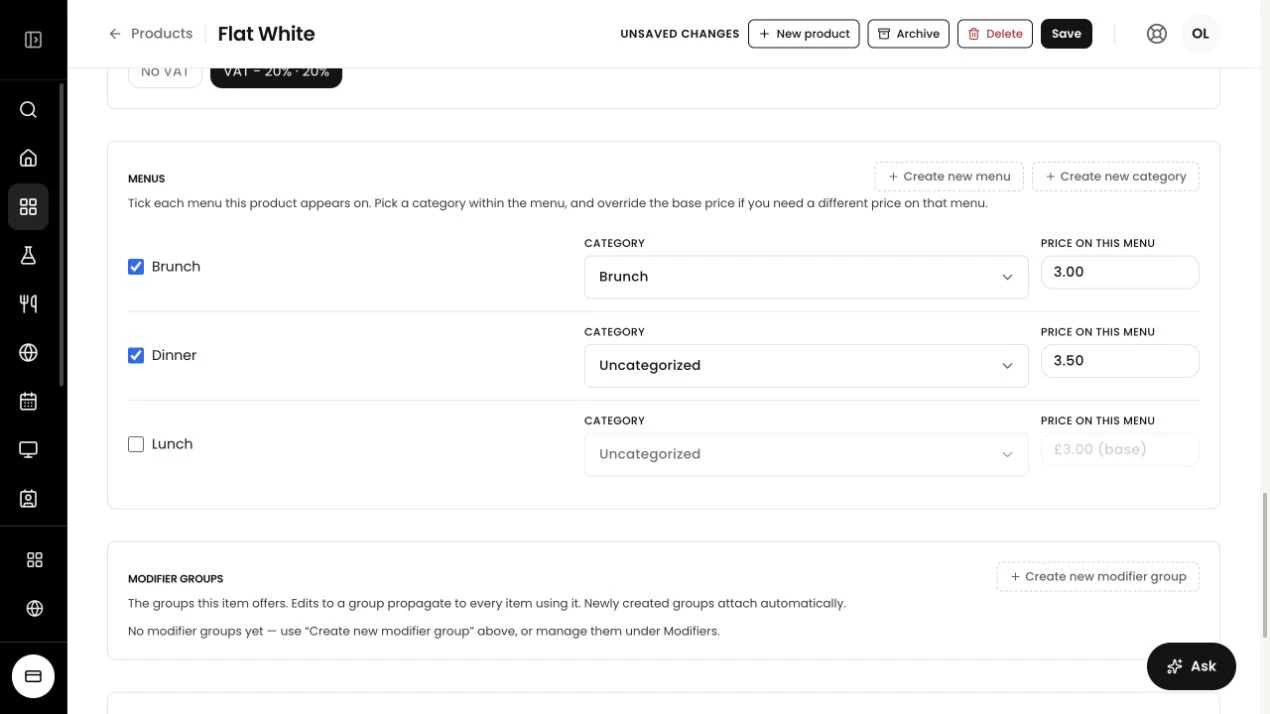
A product keeps its name, description, photo and VAT setting across the menus that use it.
Set an ordinary menu price from the product editor. Products sold by drink size have their menu prices in the builder.
The online shop uses the product’s base price or its online shop price. It does not use a menu price override.
Attach an option group to one product or several. The chosen options appear with the item on kitchen screens and printed tickets.
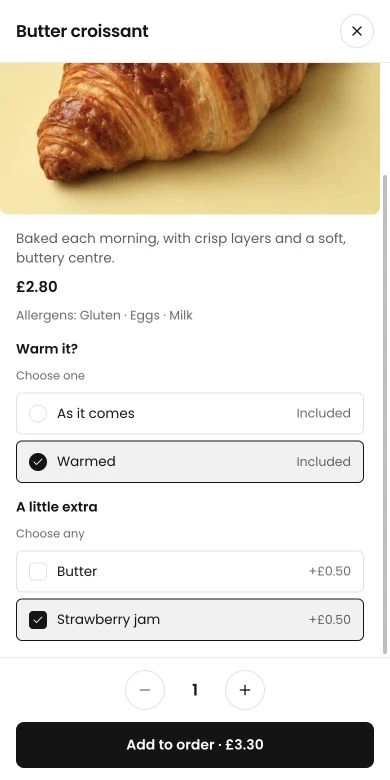
Choose single or multiple selections and set a default option. Give each choice a name your staff and customers understand.
Use an extra charge for a paid addition. Leave the charge at zero for a choice that keeps the same price.
A shared group can appear on every menu its products use, or only on selected menus on the till.
Location settings, product channels and menu hours answer different questions. Set each one for the way you sell.
Menu settings choose which sites receive a menu. Copying a menu keeps these location restrictions.
Product switches cover the till, QR ordering, click and collect, and shop. Online ordering settings choose which menus customers see.
Set days, times and optional dates for a menu. Tills and card machines need the current app to follow them; QR and collection do not.
Saving a menu and updating the till are separate steps. A failed refresh leaves the last working menu on the device.
Save the menu together. If a colleague saved first, review the warning before retrying your changes.
Staff can refresh from the menu screen. Opening the app or pairing the device again also refreshes its menus.
Devices retain their last working menu if the connection drops. New changes need a successful refresh to reach them.
Use your products at the till and in QR ordering. Send the ordered items and their choices to the kitchen stations that prepare them.
Yes. Set a price for each menu, or leave it blank to use the product’s base price. Menu prices remain separate when you edit the product or rearrange a menu. Its section and position can differ too.
On the next menu refresh. Staff can refresh from the menu screen; opening the app or pairing the device again also refreshes it. If a refresh fails, the device keeps its last working menu.
The copy keeps the sections, product placements, menu prices and location restrictions. It shares the existing products, including their details and option groups. The menu photo is not copied, so add that separately.
No. Menu settings choose the sites that receive a menu. Product switches choose whether an item appears on the till, QR ordering, click and collect, or shop. Online ordering settings also choose which menus customers see.
Yes. Preview the menus, products and choices before confirming a spreadsheet import. Existing products are skipped rather than overwritten. Import history lets you undo the products, sections and option groups that import created.
No. Describe the change, then review its proposal. Check the products and prices, untick changes you do not want and approve when it is right. Approved changes are recorded in History and reach tills on their next menu refresh.

Show us what you sell and how your menus change through the day. We’ll walk through the products, prices and choices with you.